
Connecting to a Website in Adobe Contribute
 This quick tutorial shows you how to connect to your website and get ready to edit pages with Adobe Contribute. Unless you have been provided with a Contribute connection key, you will need the following:
- The URL of the website (e.g. www.example.com).
- The name of the FTP server (e.g. ftp.example.com, example.com).
- The username and password for editing the site.
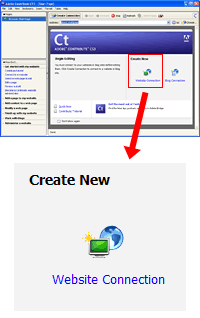
When you launch Contribute you will see the welcome screen as pictured right. Click the Website Connection icon.
From here you will be taken through a series of screens asking for your details.
The first screen mentions the Contribute connection key. Click Next to continue.
The next screen allows you to choose between a website and a blog. Select Website and enter the URL. Click Next.
The next screen asks what type of connection you want to set up. In most cases select FTP, then enter your details.
At this stage Contribute may take some time to test the connection and get things set up. Eventually you will be asked for your name and email address. These details are used to record which files you are working on, and identify you to any other people collaborating on the site.
A confirmation screen appears with all your settings displayed. Click Done.
Again, Contribute may take some time for additional setup tasks.
 Finally, your website will appear in the main panel. At this stage it's just like a browser and you can navigate the website normally. To begin working on a page, Click the Edit Page button. To create a new page, click New.